| v26.0.17.7 |
- Closing Vitreo during a read no longer gives errors.
- Lightweight parts of an open assembly now count correct qty's.
|
Nov 2, 2026 |
| v26.0.17.6 |
- Running trials simplified for new users
|
Oct 27, 2026 |
| v26.0.17.5 |
- Design improvements to addin loader
- Improved design of some UI elements
- Added a processing toolpanel that shows the file Solidworks is working on.
|
Oct 24, 2026 |
| v26.0.17.4 |
|
Oct 21, 2026 |
| v26.0.17.3 |
- Shared projects: pages and settings are the same for every member.
- Shared projects: click the share icon to sync now.
- Settings imported into a shared project reach every colleague.
- Item info: Load folder now works from the Properties tab.
|
Oct 20, 2026 |
| v26.0.17.2 |
- Sample project loads complete right after the download.
- Addin tabs: the tooltip shows the addin version.
|
Oct 20, 2026 |
| v26.0.17.1 |
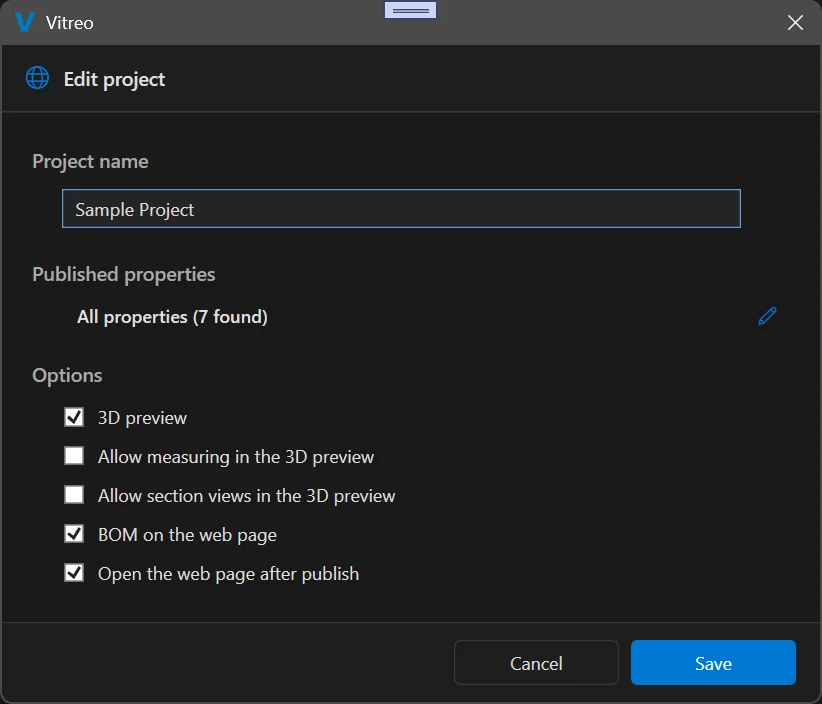
- Publish: the web page has its own BOM type on the Edit project form.
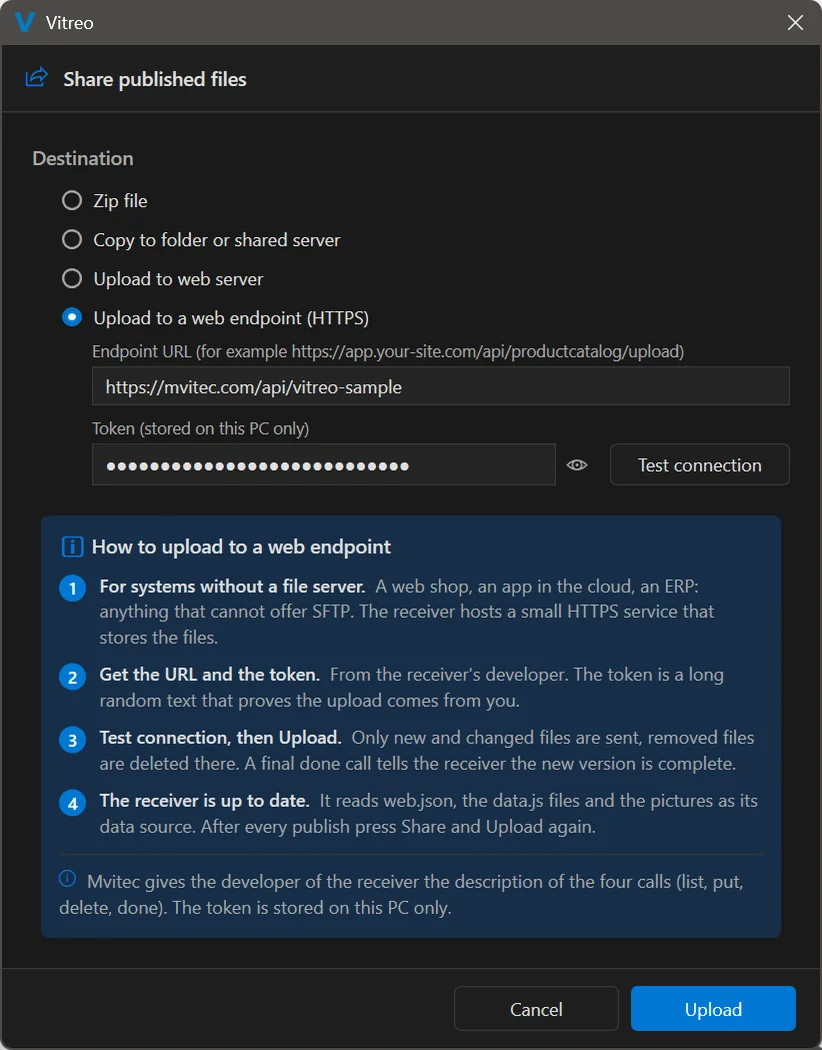
- Publish: the upload to a web server can use a key file instead of a password.
|
Oct 19, 2026 |
| v26.0.17.0 |
- Share your settings now in Settings => Export Settings
- Sample project: no error when a sample file is open in SOLIDWORKS
- Publish: renaming a page that was not published yet no longer gives an error
- No more warnings when Vitreo looks for moved files.
- All types of settings files can be dragged into Vitreo
|
Oct 19, 2026 |
| v26.0.16.9 |
- Rename tab: Copy and rename. Check files in the tree, type the new names and Vitreo makes the copies with the links between them updated
- Where used: the pane under the tree shows every assembly and drawing that uses the selected file. Choose which of them use the copy
- Copy and rename from an item box: right-click the checked item boxes and choose Copy and rename
- A file open in SOLIDWORKS is copied by SOLIDWORKS, so what is on your screen is what gets copied
|
Oct 15, 2026 |
| v26.0.16.8 |
- Project groups now share settings: columns, templates, numbering and SOLIDWORKS version come from one project and apply to every project in the group
- Right-click a group and choose Settings for all projects to pick that project. Groups you already have keep their own settings until you do
- When you start a new group, its first project provides the settings. Every project you add later uses them
- Projects pane: a gear marks the project that provides the settings, a link marks the projects that use them. Drag a project into or out of a group
- Edit project shows where the settings of a project come from
|
Oct 14, 2026 |
| v26.0.16.7 |
- Beta period ended
- Start screen shows the SOLIDWORKS Certified Solution Partner badge
- Excel export: pictures hide together with filtered rows
- File Explorer: a folder added on one page now counts for the whole project
- Properties tab: arrow keys also work on rows you cannot edit
- Properties tab: copy takes the value you see in the cell
|
Oct 14, 2026 |
| v26.0.16.6 |
- Tool panes: the How to use cards start closed, so the pane has more room for your work. Click Show to open one, Vitreo remembers it
- Export store: Vitreo keeps every converted file once on your PC. Unchanged files are reused instead of converted again. A file is converted again when the model, a part in it or the export options changed
- Settings: new Export store section with the size and a Clear button
- Export and Publish: open documents are only saved when they changed, so they are not converted again next time
- Improved publish stability and performance
- Publish to a web server: faster upload of large files, a Stop button during the upload, and a clear message when the server stops answering
|
Oct 14, 2026 |
| v26.0.16.5 |
- Update: the installer no longer runs from the Vitreo folder, so an update can no longer leave Vitreo unable to start
- Start-up problems: a clear message with the repair steps instead of a technical error
|
Oct 14, 2026 |
| v26.0.16.4 |
- Network drives: Vitreo no longer keeps restarting and rescanning your project when the drive is slow or refuses the file watcher
- Saving in SOLIDWORKS: a file that is still being saved is no longer read as an empty file
- Assemblies: a component with a file path Windows cannot read no longer stops the read, only that component is skipped and reported
- SOLIDWORKS closed or crashed while you save properties or export: you now get a clear message instead of a technical error
- Fewer error reports: empty or unreadable files and missing assemblies are summarized in one line
- File Explorer, flat list: the counter at the bottom now shows how many assemblies are ordered as one article
- Publish: if a 3D preview cannot be made (this needs SOLIDWORKS Professional or Premium), Vitreo now tells you and shows a picture instead of an empty viewer
|
Oct 13, 2026 |
| v26.0.16.3 |
- Update now works on a PC where the Downloads folder is moved (for example to OneDrive)
- If an update fails, the message shows the download link
- Add-ins: Vitreo's standard toolbar above an add-in pane and direct access to the sample project
- Open files stay editable
- Settings pane now scrolls
|
Oct 5, 2026 |
| v26.0.16.2 |
- Publish tab: double-click a publish folder, project or page to activate it, like the Projects tree
|
Oct 2, 2026 |
| v26.0.16.1 |
- Delete from Directory is off by default, turn it on in Settings > Options
- The delete question tells you if the file goes to the recycle bin or is deleted for good
- Files on a network folder have no recycle bin in Windows, Vitreo now warns you first
|
Oct 2, 2026 |
| v26.0.16.0 |
- Narrower project tree by overlay of buttons
- Update works while a project is loading
- Drag to File Explorer without dialog, drop on Add or Replace
- Reset sample project clears File Explorer
- Export result: checkboxes leave folders and files out of an export
- Export design: drag an export or a folder to another folder
- Export trees sorted A-Z
- Export button renamed Start Export
- Save fixed for a part used in another configuration than its own
- The property grid keeps its scroll position after Save
- Where used improved
|
Sep 28, 2026 |
| v26.0.15.7 |
- Cleaner add-in startup: an add-in without a license and library copies in the add-in folder are no longer written to the log.
|
Sep 27, 2026 |
| v26.0.15.6 |
- Vitreo reports the version of every running addin to the Mvitec server, so an outdated addin can be spotted and updated.
|
Sep 25, 2026 |
| v26.0.15.5 |
- Account information shows the Update button only when there is something to install.
|
Sep 25, 2026 |
| v26.0.15.4 |
- Account information reads the installed version from the file itself, the same as the Mvitec Installer.
|
Sep 25, 2026 |
| v26.0.15.3 |
- Improve account info form
|
Sep 25, 2026 |
| v26.0.15.2 |
- The update window has a Product column next to Version and Details.
|
Sep 25, 2026 |
| v26.0.15.1 |
- The update window shows Vitreo and every addin with its own version and its own notes.
- Account information shows the addin version that is running.
|
Sep 25, 2026 |
| v26.0.15.0 |
- Improved system to find moved files on disk
- Improved change folder location system
- Flat view can now display multiple configurations as one item
- Sample projects stand together at the top of the Projects pane
- Reset sample project puts a sample back as it started
|
Sep 23, 2026 |
| v26.0.14.0 |
- Improved security of sign-in and license data.
|
Sep 21, 2026 |
| v26.0.13.0 |
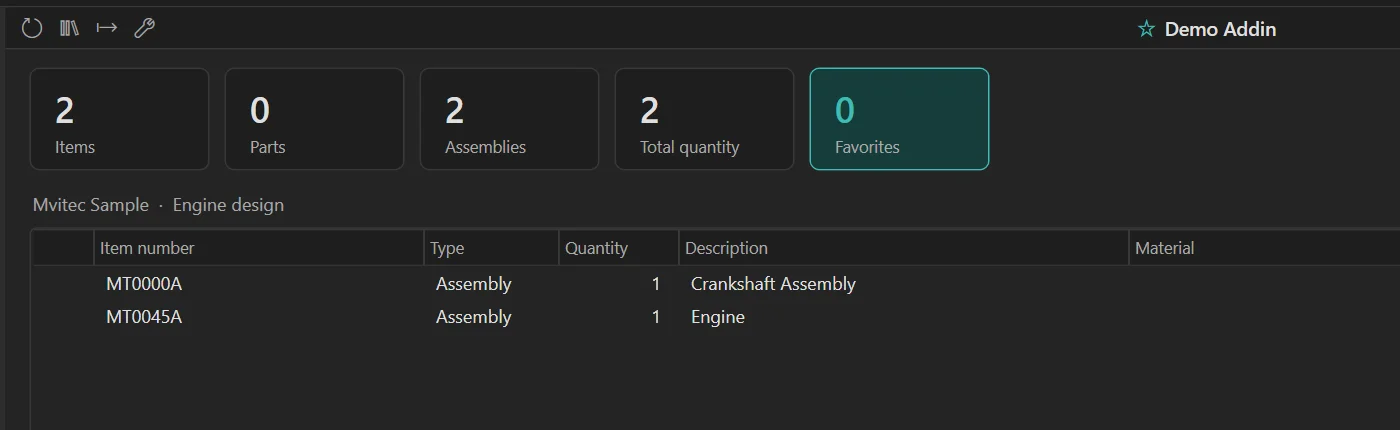
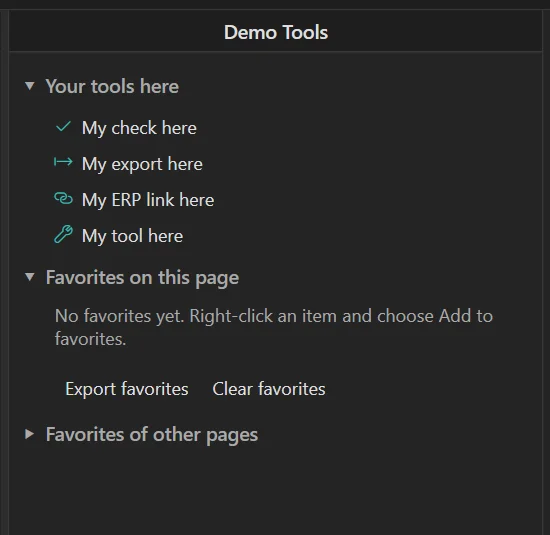
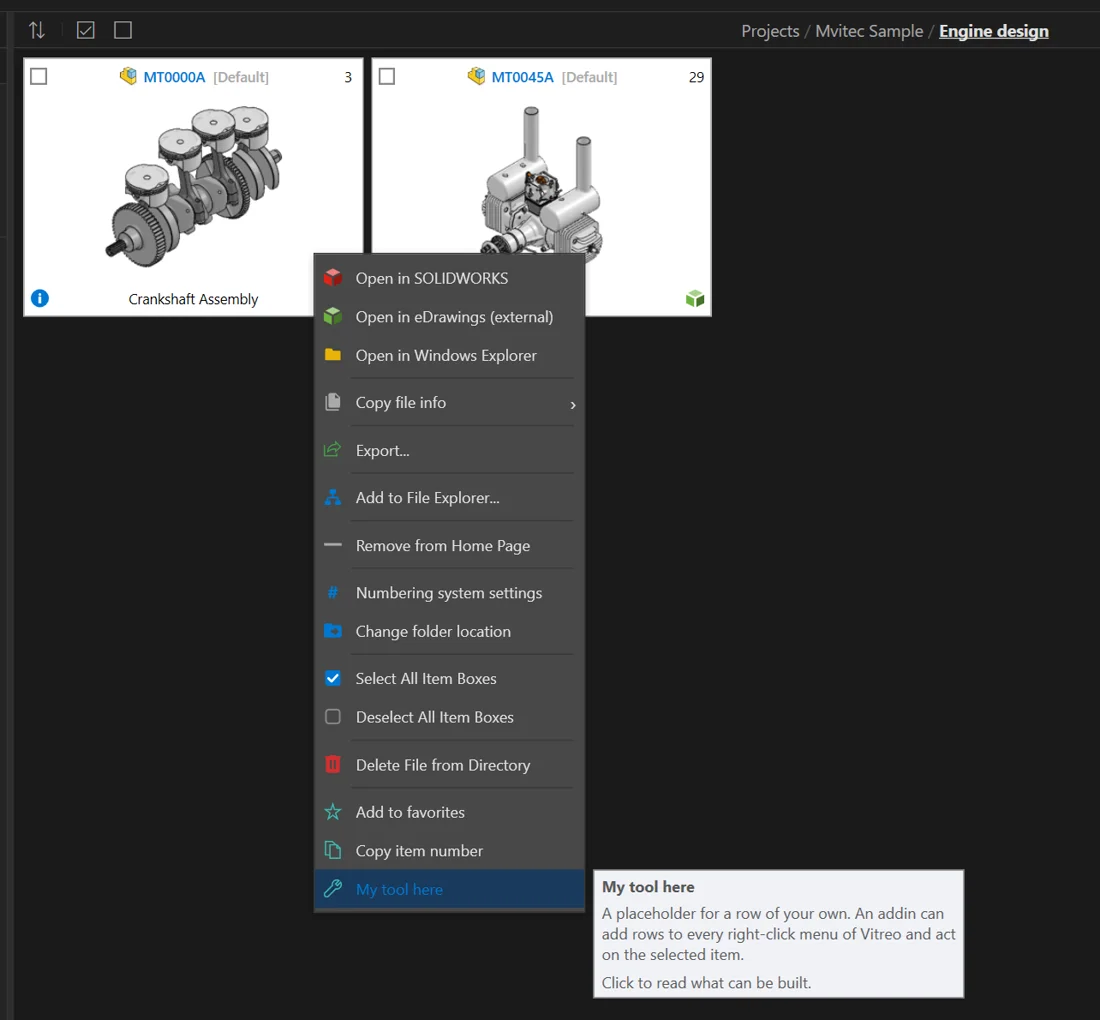
- Addins can now add their own rows to the right-click menu of an item box, next to the Vitreo rows. The new Demo Addin uses this and needs this version.
- Every error Vitreo reports to Mvitec now carries the Vitreo version, the loaded addins and the SOLIDWORKS version, so support sees the situation without asking.
- New: Export page. Right-click a page to save its settings and every SOLIDWORKS file of its folders as one zip. The package name can use the new {Page} token.
- New: Import page. Right-click a project to add a page from a zip made with Export page. You choose the page name and the folder for the files.
- Export project and Export page: files used from outside the project folders get their own section "Not in the package". It shows how many files, what happens if you continue and the folders they are in. Add a folder with the + button, or all folders at once with Add all folders. A reference to a location that no longer exists (moved files) is no longer reported.
- Export project: the form keeps a normal size for a project with many folders, the folder list scrolls and the form is wider for long paths. The folder list in Import project scrolls too.
- When Vitreo starts SOLIDWORKS for an export or a new file, it is now a normal SOLIDWORKS session: your add-ins are loaded and the command search box is there. Before, that window came up without them.
- Dropping a file from a new folder: the "Add to homepage" form now comes only when it has something new to offer. Drop the only top-level assembly of a folder and it is added at once. The files you dropped are rows of the form too, at the top and checked, also parts and drawings. Before, a dropped part could get lost when you confirmed the form. A dropped folder with exactly one top-level assembly adds that assembly without the form.
- Projects pane: the bar at the bottom now also shows the number of pages, next to the number of projects.
|
Sep 17, 2026 |
| v26.0.12.0 |
- When Vitreo starts a second SOLIDWORKS, it now always comes up with its window on screen. If SOLIDWORKS cannot be started properly, Vitreo closes it again instead of leaving a hidden SOLIDWORKS running in the background.
- Vitreo tells the licence server which addins it has loaded, so you can see per addin whether it is in use and when it ran for the last time.
- Starting an addin is now counted, like starting Vitreo itself.
- The update form opens by itself when a new version is ready. You can close it, it comes back at the next start.
|
Sep 16, 2026 |
| v26.0.11.0 |
- Addins can now run their own SOLIDWORKS work inside the Vitreo export engine: progress bar with Stop, a job file so an interrupted run continues, a watchdog and automatic restarts of SOLIDWORKS.
- A message of an addin during such a run stays in front of SOLIDWORKS.
- Addins use the same item pictures as the Bill of Materials.
|
Sep 16, 2026 |
| v26.0.10.0 |
- Right-click on another row while a menu is open now selects that row and opens its menu.
- BOM tab: the info pane follows the selected row.
- New option in Settings > Options: "Keep drawings on when navigating". When on, the Drawings toggle stays on after Home and Back. Off by default.
- Vitreo stays responsive when a network folder is not reachable, for example after the PC wakes up.
- The "files open in SOLIDWORKS" note no longer slows down the Properties tab with a large assembly open.
- Vitreo supports customer specific addins now.
|
Sep 14, 2026 |
| v26.0.9.0 |
- Excel export: numbers are now real numbers in Excel. They use the decimal separator of your Windows settings and can be summed. Works in the BOM, Properties, ERP, Compare and tree exports.
- CSV export: numbers use the decimal separator of your Windows settings.
- Properties and BOM grid: a right-click now selects the row under the mouse first. "Open file in SOLIDWORKS" opens the file you right-clicked, not the row selected before.
- Properties and BOM grid: dragging a column header to the grid edge scrolls the grid.
|
Sep 14, 2026 |
| v26.0.8.0 |
- Publishing into a OneDrive folder no longer fails when OneDrive still holds the previous publish.
- Old diagnostic files are cleaned up.
- Property grid: locked rows show why (not on disk, read-only, in use by another user, open read-only in SOLIDWORKS).
- Files not on disk can no longer be edited. The bottom bar counts them and has a refresh button.
- Property grid columns fit after every load.
- Property grid: a linked property whose value was never stored by SOLIDWORKS shows [No stored value] in amber. The bottom bar counts these files and can evaluate them in SOLIDWORKS in one go.
- Property grid: every cell with a formula has a clear tooltip.
|
Sep 14, 2026 |
| v26.0.7.0 |
- Adding an assembly or a folder to a page is much faster. Only the new files are read, the page is not reloaded.
- File problems are kept with the project: the warning icon and the file problems form are still right after a restart. A sub-assembly that is missing outside the project folders is reported. A second sync while one is still running is refused with a message.
- A page no longer fails to load when an assembly references a file name with a character Windows does not allow. That reference is skipped and reported.
- No more error reports when Vitreo is closed while a project is still loading.
- Dragging something over Vitreo that is not a file no longer causes an error report.
- The Back button on the mouse, Alt+Left and Backspace now go back, the same as the Back button.
- The text cursor is now visible in every text box and dropdown on the dark theme.
- ERP export: position numbers in an item list are no longer repeated.
- New: Rename tab. Rules rename a property in every file of the page, for example an old property name to a new one. The list shows which files need it before anything is written. The rules are saved with the project and can be shared as a file. Grid columns and ERP templates can follow the new names.
- The note about files open in SOLIDWORKS under the property grid is easier to read.
|
Sep 10, 2026 |
| v26.0.6.0 |
- Quantities: a part used in more than one configuration under the same parent keeps both configurations and the right totals. A sub-assembly used in different configurations shows the contents of each configuration. Configured parts show one row per configuration in the flat list, the BOM and the ERP export, like a SOLIDWORKS BOM.
- ERP export: the options to skip suppressed, virtual and excluded components no longer reduce the quantity twice.
- Files that need attention: after a sync, one form lists what Vitreo could not use completely and what to do. Files that could not be read, with the reason (for example a path longer than 259 characters) and a button to open their folder. Assemblies that are not on disk. Configurations that do not exist anymore. A warning icon in the status bar shows the count and opens the same form. The form can be switched off in Settings: Show file problems after a sync.
- A file open in SOLIDWORKS with unsaved changes is read again on every sync until it is saved.
- Recreate project once after this update to refresh the stored quantities.
- Fixed an error when Vitreo was closed while a sync was still finishing.
- Opening several checked items in SOLIDWORKS now uses one SOLIDWORKS instead of starting one instance per file.
- Excel and XML export no longer fail when a property value contains a hidden control character.
|
Sep 10, 2026 |
| v26.0.5.0 |
- ERP export: item numbers like a SOLIDWORKS BOM (1, 2, 2.1), values of the selected assembly on every line, option to leave the selected items themselves out.
- Order as one article by property: a property in SOLIDWORKS marks an assembly you buy as one piece. One row with its quantity in the flat list, the BOM and the ERP export, nothing inside it.
- ERP templates can be saved to a file and imported on another PC: one file from Mvitec or your ERP consultant sets up the whole export.
- CSV encoding choice for ERP importers, formatted Excel sheet option, the file opens after export.
- Every field token has a button and every ERP option explains itself in a tooltip.
|
Sep 9, 2026 |
| v26.0.4.0 |
- 3D preview with the eDrawings right-click menu, a close button and Open in external eDrawings.
- New setting to open previews in eDrawings.
- Publish tools pane opens much faster.
- Same behavior in every country.
- Newer revision indication in publish tree.
- Allow double click on projects tree to activate.
- Solved dragging issue in property grid, leaving empty values
|
Sep 8, 2026 |
| v26.0.3.0 |
- Create new SOLIDWORKS files from Vitreo.
- Create drawings directly from a part or assembly itembox.
- Numbering system and template selection added to the project form.
- Performance improvements.
|
Sep 6, 2026 |
| v26.0.2.0 |
- Adding many items to the File Explorer is much faster and shows progress.
- Saving properties tells you when it is done and no longer reads the files back.
- Projects load faster, also on network drives.
- New: a numbering system per project, and a green arrow when a newer revision of an item exists, with one click to replace it.
|
Sep 4, 2026 |
| v26.0.1.0 |
- Improved projects and navigation.
- Property editor with Excel-like drag fill, search and replace, drop-down lists and auto-fill from the database.
- BOM with templates and quick export to Excel.
- Export builds a complete production folder, driven by your properties.
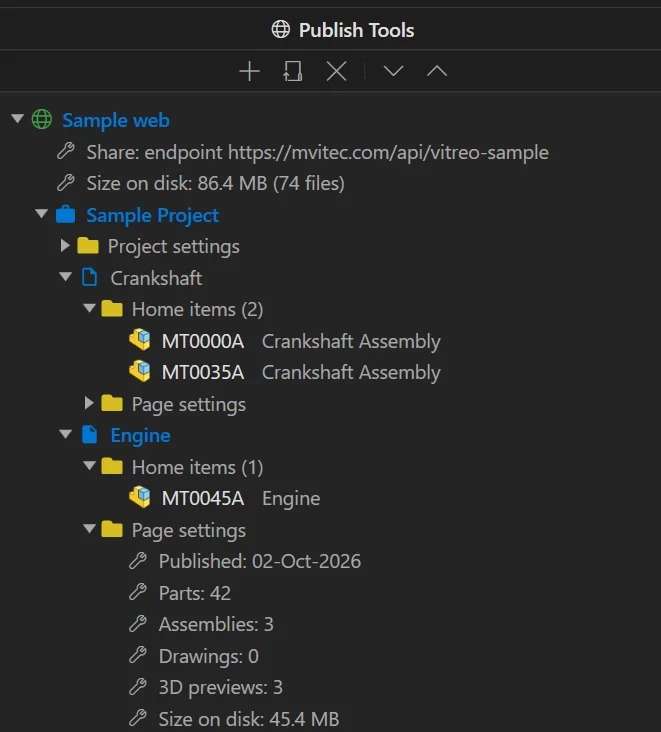
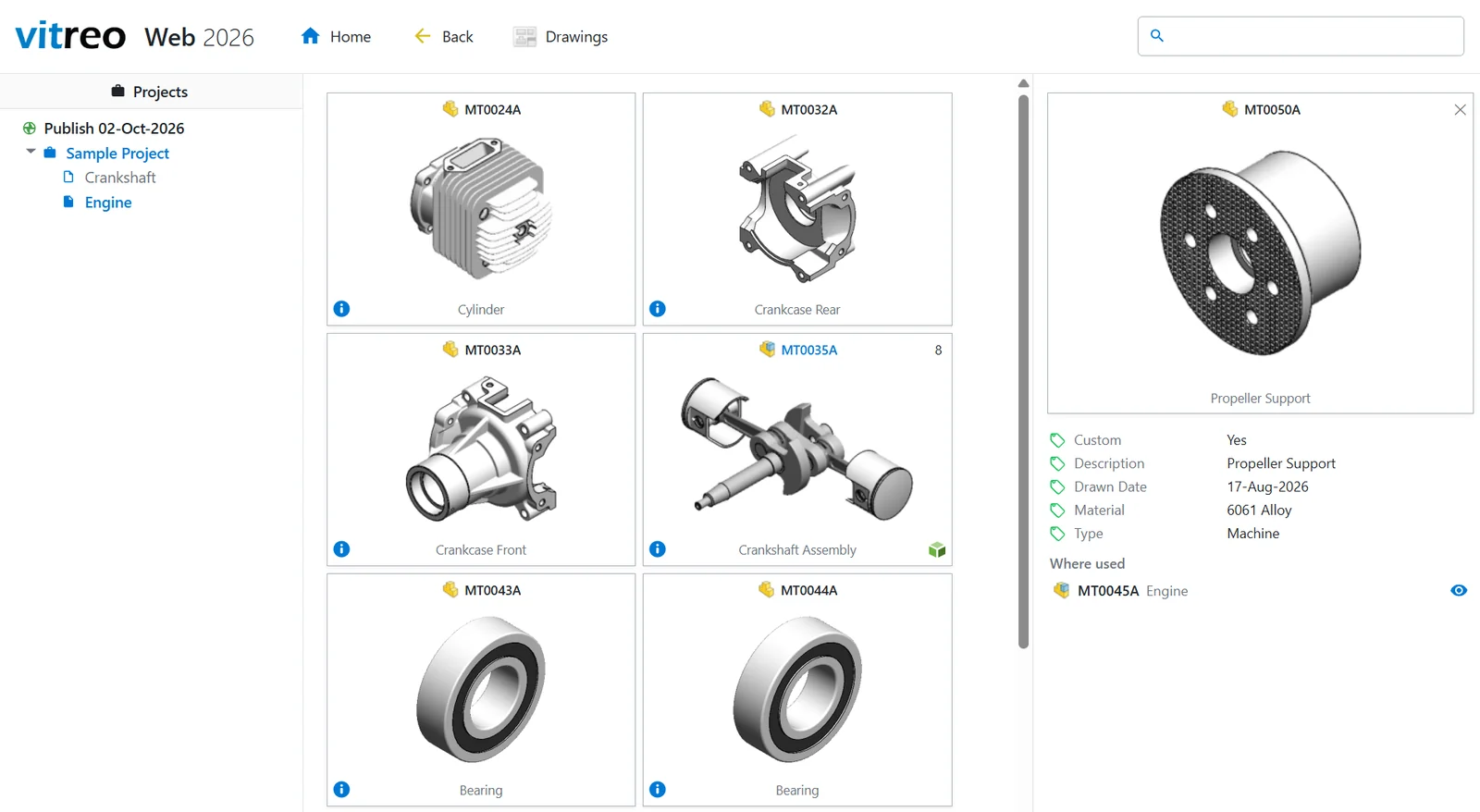
- Publish your designs as a web page with the built-in eDrawings viewer.
- Compare two assemblies.
- ERP export from your own XML or CSV template.
- Beta label and Send beta feedback in the Help menu.
- File cache moved out of the roaming profile.
|
Sep 3, 2026 |
| v26.0.0.0 |
- First version maintained by Mvitec.
- Fixed database corruption after installing new SOLIDWORKS.
- Fixed installer issues.
- Added support buttons in the user interface.
|
Apr 1, 2026 |